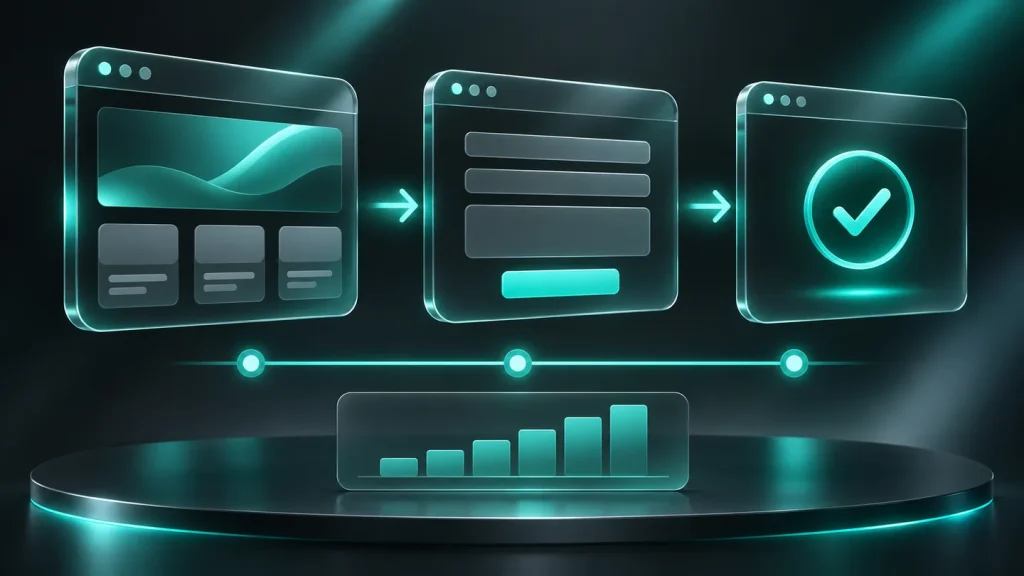
Events on the site help you see what happens between the opening of the page and the client’s request. A visit counter alone is not enough: a visitor could read the service, open the form, encounter an error and leave. However, clicking on the button does not mean that the enquiry has actually been saved and transferred to the manager.
Useful analytics begins with business issues and clear definitions. It is necessary to distinguish between interest, an attempt to send and a confirmed request. Below is a practical procedure for selecting events for a service website, catalog or client dashboard. It allows you to create a testable measurement plan without turning each mouse movement into a separate metric.
First, determine what decision you want to make based on the data. For example: do visitors find the form, at what step do they stop filling out and whether the request is saved after sending. For each question, write down the required event, the conditions for its occurrence and the method of verification. If it is impossible to understand what to do next based on the indicator, its collection should be reconsidered.
Do not mix different scenarios. Requesting a quote, downloading instructions, and logging into the client’s account solve different problems. Separately indicate what is considered an enquiry for a specific process: an entry in the site database, a CRM card, or a confirmed entry for a service. A description of the path of the enquiry from the site to the manager helps to understand the boundaries. The same event name should mean the same result.
For a simple form, it is useful to distinguish between a click to the form, the first meaningful interaction, a submission error, and a confirmed save. Opening a form does not necessarily mean you have started filling it out: it may have appeared automatically. If the form consists of several steps, mark the transitions between them. The name of the step should remain stable after changing the title text.
For a catalog, you can add the use of a search and filter, and for communication via messenger, you can use a contact link. But such a transition should be designated as a transition: the site usually does not know whether the person sent the message in another application. Don’t lump all of these activities into one hit rate. The Google Analytics reference has recommended events including generate_lead; their meaning must be compared with your confirmed action.
One event can have the following parameters: form identifier, service type, button location, interface language and step number. It’s better to use a limited value reference than to pass arbitrary page text. Then, after a slight change in the header, the report will not break up into many similar lines. Each parameter must have a clear purpose and expected format.
The contents of the enquiry fields are not required for such analysis. Do not send name, phone number, email, message text, or downloaded documents as normal parameters. Also check the page address and search string: sensitive data may accidentally end up there from the interface. Google’s documentation on event parameters specifically explains how to configure them and register custom dimensions for reporting. Passing a parameter and its availability in the desired report are different stages of verification.
The event of a successful application should correspond to a real result, and not to a click on the submit button. The application first checks the fields and saves the request, then returns a confirmation. A network error between these actions requires separate processing: the data could be saved even if the browser did not receive a response. Therefore, a repeat request cannot be automatically considered a new client request.
The thank you page is also not always a reliable source: it can be updated or opened via a direct link. Protect against counting the same result twice and agree on which state triggers the event. If the form is saved on the site, and the CRM accepts the application later, separate these steps. Checking duplicates is discussed in the article about repeated applications in CRM. Do not transfer internal identifiers to external analytics without assessing their purpose and composition.
To find an obstacle in a form, a category is usually sufficient: a required field is not filled in, the format is not suitable, the file exceeds the allowable size, or the server is temporarily unavailable. Do not copy the entered value and the full technical response from the server into the event. User messages must explain how to continue; service details remain in secure application logs.
Distinguish between validation errors and delivery failures. Not every corrected field means an interface problem, and massive repeated errors at one step already require analysis. Compare identical scenarios and devices, rather than a common error count across all site visits. If one person corrected a form multiple times, that’s multiple events, but not multiple individual users. The definition of the indicator should be written next to the report.
Go through the workflow manually and match the actions to the events sent. Check that one click does not cause two identical handlers: this happens when configured simultaneously through the site code and the tag manager. Ensure that the event is not sent when the form is simply loaded, and that changing the language does not change the meaning of the event.
Perform separate checks for successful submission, server error, bounce back, and reopening the thank you page. For a dynamic site, test transitions without a full reload. Use the selected system’s debugging tools and test data. Google Key Event Instructions shows the generate_lead check. This check confirms the analytics setup, but does not replace checking that the enquiry itself is saved in the working system.
Analytics data and number of CRM records may vary. Browser restrictions, user selection settings, blockers, and interrupted loading affect event delivery. If a person opens the messenger or calls, further conversation can take place outside the site. Therefore, the absence of an event does not prove a lack of interest, and its presence does not guarantee a sale.
Fix limitations in the report description and compare indicators for comparable periods. After updating the form, first test the measurement’s functionality, then discuss changes in customer behavior. Don’t make a conclusion about the quality of the text based on one transition. Analytics shows the area to check, and scenario testing, user requests, and application logs help determine the cause. You should not bypass the user’s refusal for the sake of completeness of the report.
Prepare a table: business question, event, trigger point, parameters, confirmation source and test scenario. Assign someone responsible for updating this table after site improvements. For the first version, it is better to check several necessary events than to collect dozens of actions with an unclear meaning. The main result is the ability to reproduce the path and explain what exactly each indicator means.
If the problem begins even before submitting the form, a technical site checklist is useful. Describe your form, analytics system and questions about the customer journey in the brief – this will help coordinate events and check the result without sharing personal data of visitors.

Choose how to contact me
Phone+355 69 984 6192 WhatsApp+355 69 984 6192 Telegram@SkyCodePro SkyCode botEstimate a project