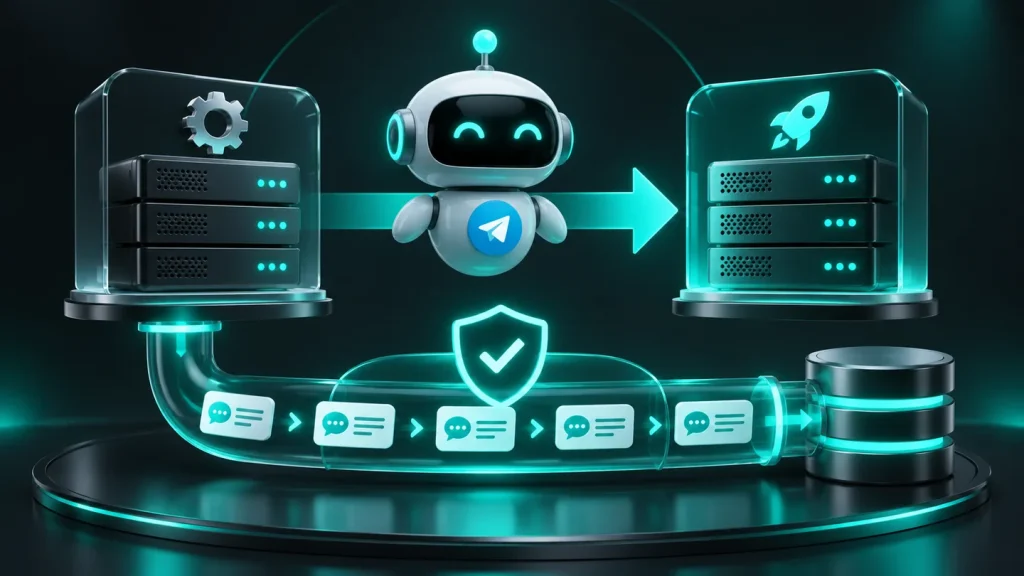
Before launching, conduct a test request from opening the application in Telegram until the employee has an entry. Then repeat the same route with bad network, click again and close the window. These checks show whether the client will be able to continue working if something is interrupted.
For each scenario, write down the initial conditions, actions and expected result on the screen and in the system. For example, when you double-click “Sign up,” the client should receive one confirmation and the employee should see one entry. This result can be checked before launch and repeated after the update.
Launch Mini App in ways that will be available to customers. This could be a bot menu button, a button below a message, or a direct link. For each input, check that the desired screen opens and that the context, such as the selected service or referral source, is preserved.
Separately open the link outside of Telegram if the client can receive it by mail or on the website. Instead of a blank screen or endless loading, show a clear explanation and an accessible way to continue. For testing, use a separate bot and test database so that tests do not end up in the production queue.
The server must check the initData data before creating a session. Client data from initDataUnsafe cannot be used as proof of identity. The procedure for verifying the signature and the role of the auth_date time are described in Telegram documentation.
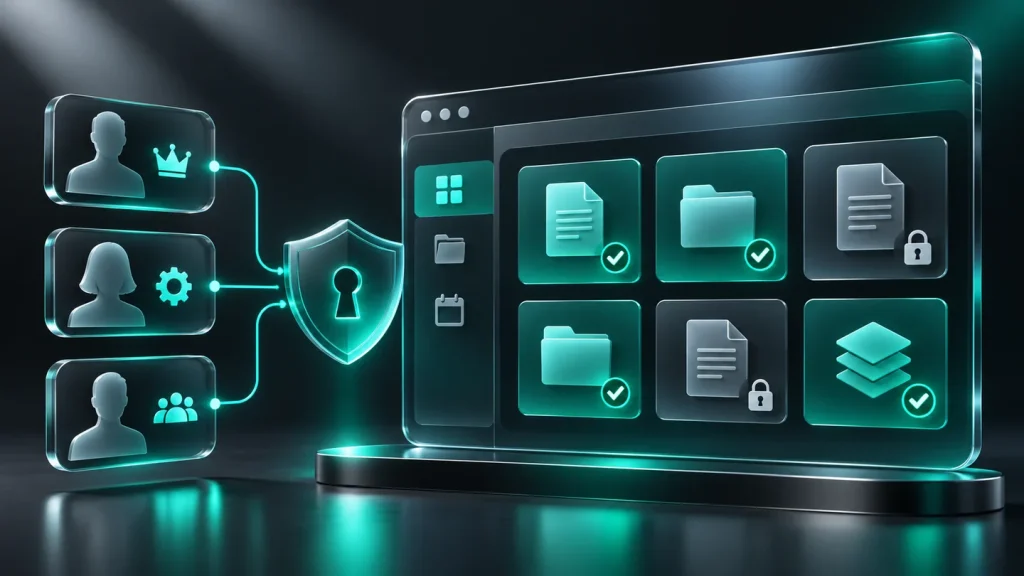
Check the input with correct, changed and expired data according to the rules of your application. Then try opening another test user’s record by direct request. The server should reject the attempt regardless of whether the link is in the interface. Check the client, employee, and administrator roles separately.
Open the app on real Android and iOS phones. Check out light and dark themes, narrow screen and larger text. Open the keyboard at the end of the long form. The field should remain visible and the submit button accessible after closing the keyboard.
Check the location of the bottom buttons in the minimized and expanded window. Telegram provides visible area and safe margin options, but you need to use them depending on the client version. Test behavior on supported devices. If you are applying for work on Telegram Desktop, include it in the check list.
Select a typical task. For an appointment, this is choosing a service, time, entering a contact and confirming. Check what time is shown to the client and employee, what happens if the slot is taken before sending, and how the client knows that the record has been created.
Check the result in the administrative section. The date, contact, status and selected service must match the confirmation that the client saw. If there is integration with CRM, check its results separately. The list of fields and employee actions can be checked with the article about the Mini App admin panel.
Ask a person who did not participate in the development to open the application for the first time and complete the task according to the short description. Don’t tell me where to look for the button. Write down which screen he stopped on and clarify what he expected to see. This helps distinguish a technical glitch from an unclear step. After fixing, repeat the test with a clean session so that the saved selection does not hide the problem.
Disconnect the network while sending and reconnect. Repeat the scenario with a slow response, double-clicking and closing the window. Particularly important is the case when the server saved the request, but the application did not receive confirmation. Retrying an action should safely return the result of the previous attempt or show the status of the request.
Protecting a button from double-clicking helps the interface, but does not in itself protect the server. Check for repetition of the same request. For operations that create a record, the server needs a way to recognize an attempt that has already been processed and not create a duplicate.
To test for failures, use test records with recognizable numbers and a separate notification channel. Record what was saved before the interruption, what response the client saw, and what appeared in the employee’s queue. Try again once the network is restored and compare entries by ID. This makes it easier to detect a duplicate, even if both answers look the same in the interface.
Close the application before submitting the form and open it again. Agree on the expected behavior for the draft. The application may prompt you to continue or clearly indicate that the data has not been saved. Do not quietly restore outdated prices, recording times, or fields from a previous session.
Re-check after submitting. If the application has already been created, the client should be able to find out its status. If the session has expired, prompt a re-login and verify that the client returns to the correct screen. Do not show him other people’s data when changing your account.
Go through scenarios with an unavailable CRM, a rejected file, and an empty list of available dates. The message should explain whether the action can be repeated or whether the data needs to be changed. For support, please save the ticket number or bug ID. Do not display official details and personal data in public journals.
Separately check communications to the employee. If a customer is unable to complete an action, there must be an accessible way for them to get help. An example of the rules for queuing and returning to the bot is described in the article about transferring the dialogue to the operator.
Collect the results into a table with the device, Telegram client version, workflow and actual result. Separately note errors in which the user cannot log in, loses data, or creates duplicates. First, correct them and repeat the entire associated route.
After launch, test one agreed test workflow on the production environment and remove the test entry according to the command rules. Describe your Mini App and key scenario in the brief to agree on checks and readiness criteria before release.

Choose how to contact me
Phone+355 69 984 6192 WhatsApp+355 69 984 6192 Telegram@SkyCodePro SkyCode botEstimate a project